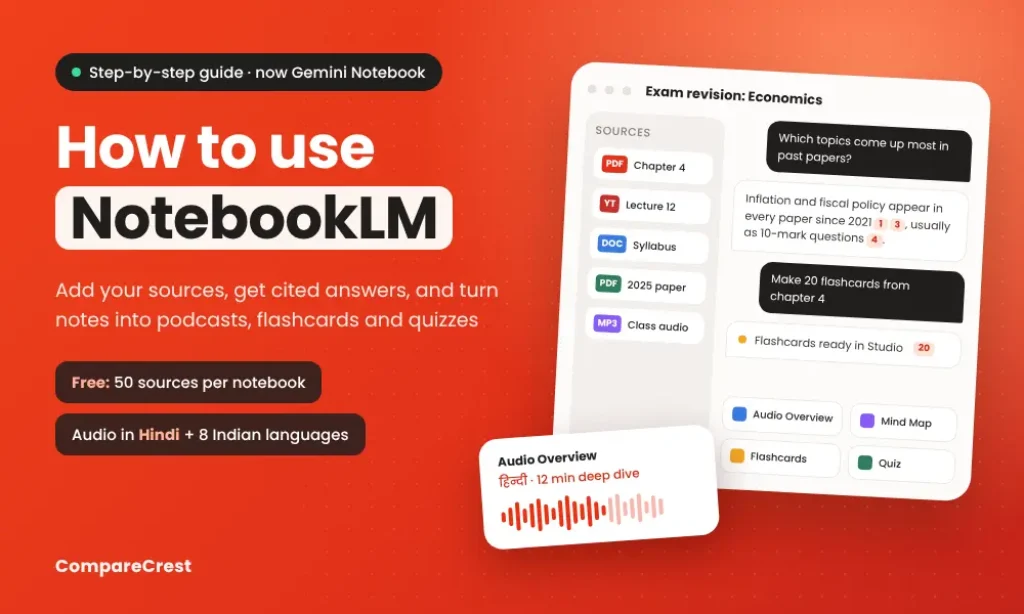

NotebookLM is Google’s AI research tool that answers questions using only the documents you give it. You create a notebook, add sources such as PDFs, Google Docs, YouTube videos or web pages, and then ask questions, get summaries with citations, or turn the material into podcasts, flashcards, quizzes and slide decks.
If you’ve opened it recently and seen a different name, you’re in the right place. On 16 July 2026, Google renamed NotebookLM to Gemini Notebook. It is the same product at the same address, notebooklm.google.com, and existing notebooks, sources and shared links carried over. This guide uses both names, because most people still search for NotebookLM.
NotebookLM Is Now Gemini Notebook: What Changed
The rename came with three practical changes, not just a new logo:
- Notebooks sync with the Gemini app. You can open and create notebooks from Gemini, and changes show up in the standalone tool too.
- Each notebook can run code. Google added a secure cloud computer per notebook that writes and runs code for data analysis, such as charts from a spreadsheet. It launched for Google AI Ultra users first, with Pro users on the web following in the weeks after the announcement.
- Notebooks are coming to AI Mode in Google Search. Google announced this as “soon” in July.
Google says the product stays a standalone research and learning tool, used by more than 30 million people and over 600,000 organisations. Workspace admins don’t need to do anything. Mobile users may need to update the app to see the new name.
What Makes NotebookLM Different From ChatGPT and Gemini
ChatGPT and the Gemini chatbot answer from their training data and the web. NotebookLM answers from your sources. Every claim in a reply comes with a numbered citation, and clicking it jumps to the exact passage in your document.
That makes it better for some jobs and worse for others:
| Task | NotebookLM | ChatGPT or Gemini |
|---|---|---|
| Summarising a 200-page report you uploaded | Strong, with citations to each page | Good, but harder to verify |
| Revising from your own lecture notes | Strong, stays inside the syllabus | May pull in material your course doesn’t cover |
| General questions (“what is GST?”) | Weak unless your sources cover it | Strong |
| Writing a first draft from scratch | Limited | Strong |
| Checking where a fact came from | Click the citation | Often unclear |
If you’re deciding which chatbot to pay for, our ChatGPT vs Gemini comparison covers that. NotebookLM works alongside either one rather than replacing them.
How to Use NotebookLM (Step by Step Guide)
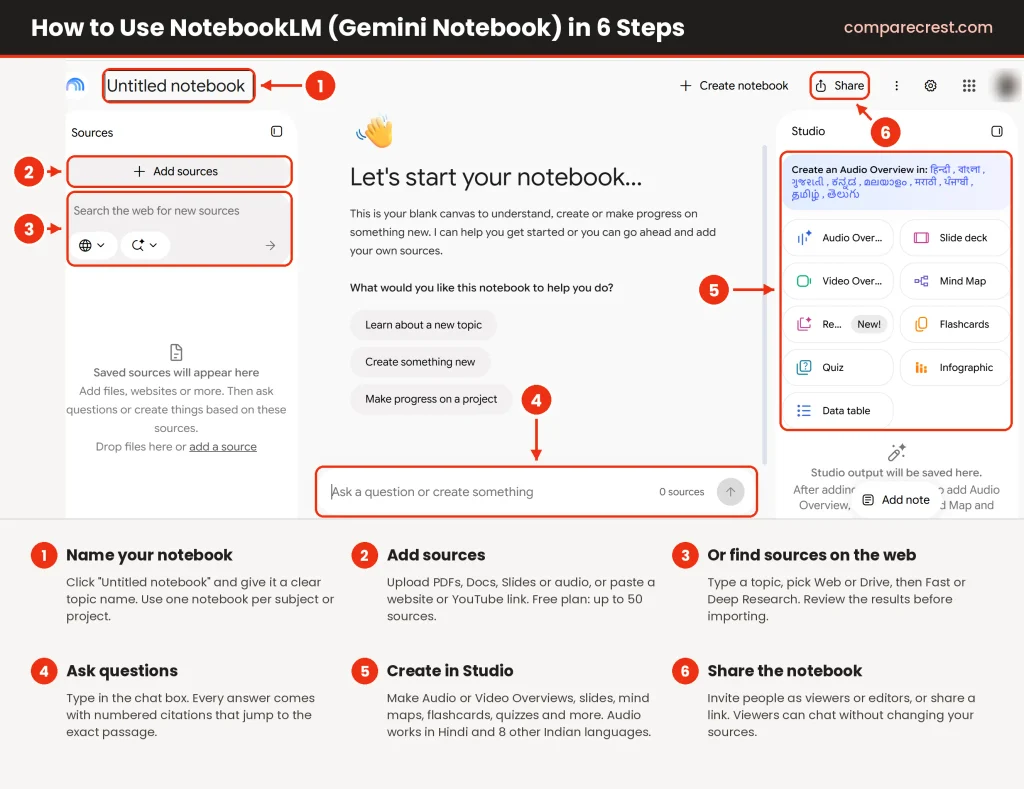
1. Create a Notebook
Go to notebooklm.google.com and sign in with a Google account. Click Create new (or New notebook). Each notebook is a separate workspace, so make one per topic: one for a semester subject, one for a client project, one for a book you’re studying. Mixing unrelated material in one notebook makes the answers less focused.
2. Add Your Sources
The add-sources window opens automatically. You can:
- Upload files: PDF, Word, PowerPoint, text, Markdown, CSV, ePub, images and audio files
- Pick from Google Drive: Docs, Slides and Sheets
- Paste a web page URL or a public YouTube link
- Paste text directly, such as copied notes or an email thread
Free accounts can add up to 50 sources per notebook. Each source can hold up to 500,000 words, and uploaded files can be up to 200 MB.
3. Find Sources You Don’t Have Yet
If you’re starting a topic from scratch, use the source discovery option in the add-sources panel. Fast Research pulls a handful of relevant web sources quickly. Deep Research runs longer and builds a fuller, cited list of sources, which you can review and import. Read the list before importing everything, because a weak web source will weaken the answers that cite it.
4. Ask Questions in Chat
The middle panel is the chat. Ask anything about your sources, and the answer arrives with numbered citations. Hover or click a number to see the passage it came from.
A few habits make the answers noticeably better:
- Untick sources you don’t need in the left panel. NotebookLM only uses ticked sources, so narrowing the set sharpens the answer.
- Ask for a format. “Give me a table comparing the three schemes” works better than “compare the schemes.”
- Set a persona. In chat settings you can tell it how to respond, for example “explain like a tutor for a first-year commerce student” or “respond as a sceptical investor.”
5. Save Useful Answers as Notes
Click Save to note under any reply you want to keep. Notes sit in the Studio panel and stay with the notebook. You can also convert a note into a source, which is useful when you’ve written a summary you want future answers to build on. Chat history is now saved, so you can return to a conversation later.
6. Generate Outputs in the Studio Panel
The right-hand Studio panel turns your sources into formats you can study, share or present. This is where NotebookLM stands apart from a normal chatbot, and it’s covered in the next section.
7. Share the Notebook
Click Share to invite people by email as viewers or editors, or to share a public link. Viewers can chat with the notebook and use its outputs without being able to change the sources. Sharing does not raise anyone’s source limit.
What You Can Make in the Studio Panel
| Output | What it is | Best used for |
|---|---|---|
| Audio Overview | A podcast-style conversation between two AI hosts about your sources, available in dozens of languages including Hindi | Revising while commuting, getting the gist of long reports |
| Video Overview | A narrated video with slides and visuals built from your sources | Explaining a topic to a team or class |
| Mind Map | A clickable diagram of the main ideas and how they connect | Seeing the structure of a subject before diving in |
| Reports | Written documents such as a study guide, briefing doc, FAQ or blog post | Turning research into something you can send |
| Flashcards | Question-and-answer cards generated from your sources | Memorising definitions, dates and formulas |
| Quizzes | Multiple-choice tests with explanations | Checking what you actually remember |
| Infographic | A single visual summary of key points | Sharing a summary on one page |
| Slide Deck | Presentation slides built from your material | A first draft of a class or work presentation |
| Data Table | Information pulled from sources into rows and columns | Comparing products, papers or case studies |
Most outputs have a Customise option. For an Audio Overview, you can choose a format (such as a deep dive, a short brief, a critique or a debate), pick the language, set the length and tell the hosts what to focus on. A short instruction like “focus on chapters 4 and 5 and skip the history” makes the result far more useful.
You can also join an Audio Overview mid-way in Interactive mode and ask the hosts a question out loud. If you’d like to make videos from scratch rather than from documents, our guide to making AI videos for free covers the other tools.
Prompts That Get Better Answers
Generic questions get generic summaries. These prompts tend to work better:
- “List every claim in these sources that is backed by a number, with the number and source.”
- “Where do these two papers disagree? Quote the relevant lines.”
- “Create a one-page revision sheet for chapter 3 with the 10 most likely exam questions.”
- “What does this contract say about termination and notice periods? Cite every clause.”
- “Explain this topic as if I’ve never studied economics, then give me three questions to test myself.”
- “What important questions do these sources not answer?”
That last one is underused. It shows you the gaps in your research before someone else points them out.
How to Use NotebookLM for Students
NotebookLM suits students better than most AI tools because it stays inside your syllabus. Here is a workflow that works for exam revision, whether that’s board exams, university semesters or competitive exams.
- Make one notebook per subject. Add your textbook chapters as PDFs, your class notes, the syllabus, and past question papers.
- Add lecture recordings. Upload audio from recorded classes, or paste YouTube links for lectures with captions. NotebookLM imports the transcript.
- Start with a Mind Map to see how the chapters connect.
- Generate a study guide from the Reports option, then read it with the sources open beside it.
- Make flashcards for definitions, formulas and dates, and run through them daily.
- Take a quiz before you think you’re ready. Wrong answers show where to revise.
- Ask it to predict questions using the past papers: “Based on the last five years of papers, which topics come up most often?”
- Listen to an Audio Overview on the way to college, in English or Hindi.
Two cautions. First, NotebookLM can misread scanned PDFs, tables and handwritten notes, so check key facts against the original page through the citation. Second, use it to understand material, not to write submitted work. Most colleges treat AI-written assignments as a breach of academic rules, and the outputs carry the same errors any AI tool can make.
For recording and transcribing live classes or meetings, see our best AI note takers guide. Researchers working through academic papers may also want a dedicated summariser such as Scholarcy.
Using NotebookLM at Work
The same approach works for professional research. Common uses include:
- Onboarding: a notebook of company policies, product docs and process guides that new hires can question directly.
- Competitor research: competitor web pages, pricing pages and review summaries in one place, with a Data Table comparing them.
- Client briefs: meeting notes, emails and previous reports turned into a briefing doc before a call.
- Long documents: RFPs, annual reports, policy papers and contracts, with every answer tied to a clause or page.
Business accounts on Google Workspace get NotebookLM under Workspace terms, and Google Cloud enterprise plans offer higher output limits.
Source Rules and Limits to Know
| Rule | Limit |
|---|---|
| Words per source | Up to 500,000 |
| File size per upload | Up to 200 MB |
| Google Slides | Up to 100 slides per file |
| Google Sheets | Up to 100,000 tokens per file |
| YouTube | Public videos with captions only; only the transcript is imported |
| New YouTube uploads | Videos less than 72 hours old may not import |
| Audio files | Transcribed on import; files without speech won’t work |
| PDFs | Copy-protected PDFs can’t be imported |
If a YouTube video is deleted or made private, NotebookLM removes it as a source within 30 days. Drive files can sync, so updated Docs don’t need to be re-uploaded.
NotebookLM Free vs Paid Plans
NotebookLM is free to use. Paid tiers come bundled with Google’s AI subscriptions and raise the number of notebooks and sources, along with usage limits on chat and Studio outputs.
| Plan | Price in India | Notebooks | Sources per notebook | Notable extras |
|---|---|---|---|---|
| Free | ₹0 | 100 | 50 | All core features, lower usage limits |
| Google AI Plus | ₹399/month | 200 | 100 | Higher limits, early access to features |
| Google AI Pro | ₹1,950/month | 500 | 300 | Higher limits, notebook code execution |
| Google AI Ultra | From ₹6,500/month | 500 | 500 to 600 | Highest limits, newest features first |
**Google updates NotebookLM features, limits and plan prices often, so check Google’s help pages and plan page for the latest.
If you’re a Jio user on an eligible plan, check the Jio offer for free Google AI Pro access before paying, since it unlocks Pro-level NotebookLM limits along with Gemini.
One India-specific detail: Google removes the visible watermark from generated outputs on Pro and Ultra, but says a watermark is still applied automatically for users who live in India, South Korea or Vietnam. Plan for that if you intend to use Video Overviews or infographics in public-facing material.
Google doesn’t publish exact daily caps for every Studio output, and limits on free accounts reset over time. If you hit one, the outputs you’ve already made stay in the notebook. Our ChatGPT Plus guide is useful if you’re weighing one AI subscription against another.
Where NotebookLM Falls Short
- It only knows what you give it. Ask about something outside your sources and it will say so, or give a thin answer. That’s by design, but it surprises people used to ChatGPT.
- Extraction isn’t perfect. Tables, charts, scanned pages and handwriting can come through garbled. Spot-check anything important.
- Audio and Video Overviews simplify. The hosts sound confident, and they sometimes flatten nuance or overstate a point. Treat them as a starting point, not the final word.
- There’s no public consumer API. You can’t plug it into your own app or automate it outside Google’s enterprise offering.
- It’s a Google account tool. Your sources live in Google’s systems. Google says personal-account uploads and chats aren’t used to train its models, but check your organisation’s policy before uploading confidential client files.
FAQs
Is NotebookLM free?
Why is NotebookLM now called Gemini Notebook?
Does NotebookLM work in Hindi?
Can NotebookLM read YouTube videos?
Is NotebookLM better than ChatGPT for studying?
Can I use NotebookLM on my phone?
How many sources can I add to NotebookLM?
Is my data safe in NotebookLM?

Ajay Kumar is an SEO and AI search specialist with more than 10 years of experience across SEO, app store optimisation and generative engine optimisation. He has led search growth for gaming, software, fintech and healthcare brands in India and internationally, and he edits every CompareCrest comparison, checking pricing and claims against vendor sources before publishing.