
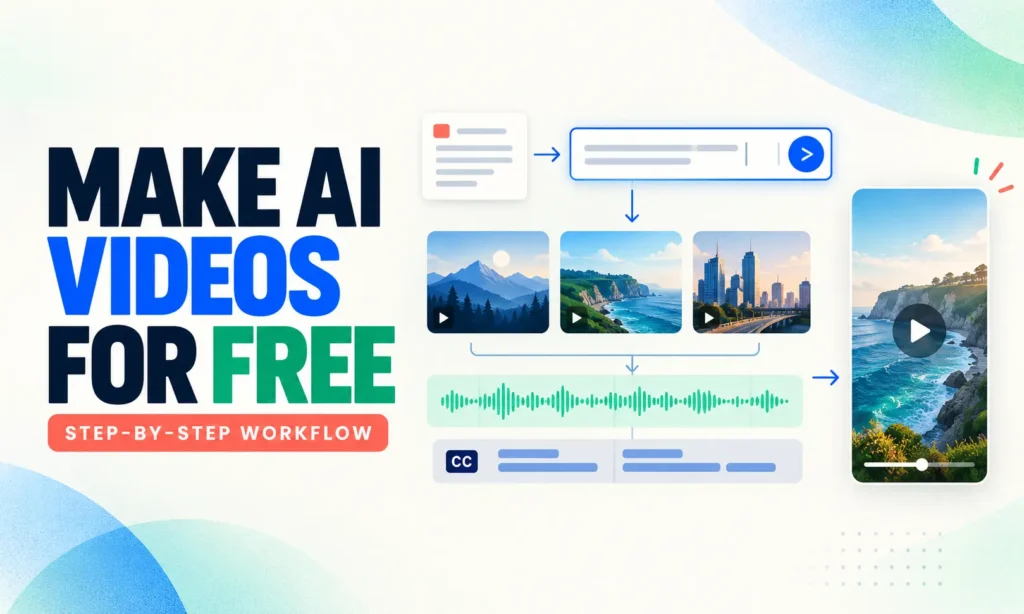
You can make a complete AI video in 2026 without paying, but not with a single tool. Free generators make clips of 4 to 8 seconds. A finished video comes from writing a short script, generating a handful of clips, and stitching them together with a voiceover and captions in a free editor. This guide walks through that workflow, using the free tools that still work this year.
Free AI video also changed more in 2026 than most guides reflect. Several tools that were famous for generous free plans have quietly cut them, and the best free option today is one many people haven’t tried.
TL;DR: What Most Guides Get Wrong
- Google Flow is now the best free starting point. Google’s help pages say every account without a Google AI plan gets 50 Flow credits a day, usable on Veo 3.1. That’s about five short clips a day on the Lite model.
- You can’t make Veo’s top-quality clips for free. Veo 3.1 Quality costs 100 credits, the free grant is 50, and unused credits don’t roll over. Free users can use only the Lite and Fast models.
- The “66 free Kling credits a day” figure is out of date. Kling’s own credits policy now describes daily login credits as a subscriber benefit, and its free plan excludes 1080p, watermark removal and commercial use.
- ChatGPT can still make videos, just not on its own. It has had no built-in video tool since OpenAI shut down Sora, but plugins from Runway, HeyGen, invideo and others now render videos inside the chat, using your account and credits with each company.
- Grok’s free video is gone. Grok moved video generation behind its paid plans in March 2026.
- The Gemini app’s video tool isn’t free. Outside short promotions, video generation in the Gemini app needs a Google AI plan. Flow is the free route to the same Veo models.
- Free clips often can’t be monetised. Kling, Hailuo and Pika reserve commercial use for paid plans. Check the terms before you put free clips in a monetised YouTube video or a client ad.
What You Can Make for Free
Free tools are good at short, visual clips: a product rotating on a table, a city street at dusk, a character walking through a market, a photo brought to life. They’re weaker at anything that needs the same face across many shots, readable on-screen text or precise lip-sync to a long voiceover.
That makes them a good fit for faceless YouTube Shorts, Instagram Reels, B-roll for explainer videos, animated product shots and festive greetings. A 30 to 60 second video built from five to eight clips is realistic on free tools. A 10-minute film isn’t.
Free AI Video Tools Worth Using
| Tool | What’s free | Clip length | Watermark | Commercial use on free |
|---|---|---|---|---|
| Google Flow (Veo 3.1) | 50 credits a day, no rollover | 4, 6 or 8 seconds | AI watermarking applied | Check Google’s terms |
| Meta AI (Vibes) | Create, animate and remix short videos in the Meta AI app or meta.ai | Short clips | Yes | Check Meta’s terms |
| Hailuo | One-time welcome credits that expire after 3 days | About 6 seconds | Yes | Check current terms |
| Runway | 125 one-time credits | Short clips | Yes | Check plan terms |
| Kling | Limited free generations | Short clips, up to 1080p on supported modes | Yes | Check current terms |
| Pika | Limited free access or purchasable credit packs | Short clips | Varies | Check current terms |
| PixVerse | About 60 credits a day, plus a signup bonus | About 5 to 8 seconds | Yes | Check current terms |
Free credits, models and watermark rules change often. Check each tool’s own pricing or credits page before planning a project around it.
For a deeper comparison of each generator’s quality and paid plans, see our guide to the best free AI text-to-video generators.
How Far 50 Free Flow Credits Go
Google Flow charges by model, not by second. Google Flow Help confirms that users receive 50 daily credits, including people without a paid Google AI plan.
| Veo 3.1 model | Credits per clip (non-Ultra) | Clips per day on 50 free credits | Footage per day |
|---|---|---|---|
| Lite | 10 | 5 | Up to 40 seconds |
| Fast | 20 | 2 | Up to 16 seconds |
| Quality | 100 | 0 | Not possible on free |
Draft everything on Lite. Five 8-second clips a day is enough for one short Reel per day, or a 60-second video built over two days. Unused credits disappear at the daily reset, so generate something every day you’re working on a project.
Making Videos Inside ChatGPT With Plugins
ChatGPT no longer generates video itself, but its plugin directory now includes several video makers. You describe the video in a normal chat, the plugin renders it on the company’s own servers, and the result appears back in the conversation. Install a plugin from the plugins section in ChatGPT, then connect your account with that company when it asks.
The catch is that the free plan rules belong to the video company, not to ChatGPT. Installing a plugin doesn’t unlock extra credits or remove watermarks.
| Plugins | What it makes | Free use | Watch out for |
|---|---|---|---|
| Runway | Clips from text or an uploaded photo, using Runway’s models | 125 one-time credits on a free Runway account | Credits don’t refresh on the free plan |
| HeyGen | Avatar-led explainers and presenter videos with voiceover and b-roll | Free HeyGen account, with a small monthly allowance (3 videos a month on the free plan) | Generations use your HeyGen credits |
| invideo | Full videos with scenes, voiceover and music from a prompt | Your invideo plan sets watermarks and export limits | The free plan’s limits still apply |
| VEED Video Generator | Presenter videos with stock characters and voices | 720p exports with a watermark | VEED says the free watermark is baked into the file, so upgrading later means re-exporting |
| Higgsfield | Image and video generation across several models | Depends on your Higgsfield plan | Check credit costs per model |
| Kling AI | Kling’s video models inside the chat | Kling’s free plan limits apply | Free exports are watermarked and 720p |
| Descript | Editing tools for talking-head and podcast videos | Depends on your Descript plan | Better for editing footage than generating it |
| Explain Video Generator | Explainer and onboarding videos from help docs | Drafts must be claimed before export | Built for product explainers rather than social clips |
| Creative Claw | Videos, images and voiceovers using models such as Seedance 2.5, Gemini Omni and MiniMax | Shows the cost before each generation | A new tool with a short track record |
A good free workflow is to write the script and shot list in ChatGPT, then send the shots to a plugin with free credits, such as Runway’s starter credits or HeyGen’s monthly allowance for an avatar intro. Use Google Flow’s daily credits for the B-roll.
Underrated and New Tools Worth Trying
These get far less attention than Kling or Runway, but their free plans are among the more usable this year.
1. PixVerse
PixVerse is built around ready-made effects and templates for short social clips, and it refreshes free credits daily, around 60 a day plus a signup bonus. Free exports are watermarked and low resolution, so it suits practising, memes and trend formats more than polished work.
2. Creative Claw
Creative Claw is one of the newer ChatGPT plugins. It puts several third-party video models, including ByteDance’s Seedance 2.5 and Google’s Gemini Omni, behind one chat interface and shows the cost before each generation. It’s worth a look if you’d rather stay in ChatGPT than juggle accounts, but it’s new, so check its terms before using it for client work.
3. Explain Video Generator
Explain Video Generator, another ChatGPT plugin, is aimed at a gap the big tools ignore: turning written help docs into short onboarding videos. If you run a small SaaS or online course, it can save hours of screen recording.
Step-by-Step Guide to Make AI Videos for Free
Step 1: Pick One Format and a Length
Decide what you’re making before you open a generator. “A 30-second vertical Reel showing a chai stall at sunrise, with a voiceover about my café” gives you a clear shot list. “A cool AI video” burns credits on clips you won’t use.
Write down the aspect ratio (9:16 for Reels and Shorts, 16:9 for YouTube), the total length and the number of shots. A 30-second Reel usually needs four or five clips.
Step 2: Write the Script and Shot List With a Free Chatbot
Ask a free chatbot to write a short voiceover script and break it into shots of 6 to 8 seconds each, with one visual description per shot. ChatGPT, Gemini and the free ChatGPT alternatives that work without login all handle this well. Our ChatGPT vs Gemini comparison covers which suits longer scripts and Hindi.
A useful prompt: “Write a 30-second voiceover for a vertical video about [topic]. Split it into 5 shots of about 6 seconds. For each shot, give the voiceover line and a one-sentence visual description I can paste into an AI video generator.”
Step 3: Make a Reference Image for Consistency
The biggest weakness of free video tools is consistency. The same character or product can look different in every clip. The fix is to create one strong still image first, then animate it with image-to-video rather than generating every shot from text.
Free image tools in Gemini and ChatGPT are good at this, and our Gemini AI photo editing prompts cover the kind of detailed prompts that keep faces and products steady. If you want a recurring animated character for a channel, our guide to AI animation tools for YouTubers covers tools built around character consistency.
Step 4: Generate the Clips
Open Google Flow, sign in with a Google account (you need to be 18 or over), and start a project. Use image-to-video with your reference image where you can, and paste one shot description per generation. Keep prompts concrete: subject, action, setting, light and camera movement.
A strong prompt looks like this:
Slow push-in on a steaming glass of chai on a wooden stall counter at sunrise, soft golden light, steam rising, blurred street behind, vertical 9:16, realistic.Generate each shot on Veo 3.1 Lite first. Only spend Fast credits on the one or two shots that matter most, such as the opening.
When Flow’s credits run out for the day, Meta AI’s Vibes is the easiest second option for animating a photo or making a short stylised clip, though availability varies by region. Hailuo’s welcome credits are worth using for a specific project, since they expire after three days.
Step 5: Add a Voiceover and Sound
Veo 3.1 generates sound with its clips, which works for ambient noise and short effects. For a voiceover across the whole video, record your own voice on your phone, or use the free text-to-speech in your editor. Your own voice usually sounds more natural than a free AI voice, and it makes a faceless channel feel less generic.
Step 6: Edit, Caption and Export
Bring the clips, voiceover and music into a free editor, trim each clip to the voiceover line, and add captions. Most viewers watch Reels and Shorts on mute.
On a phone, Instagram’s Edits app and Adobe Premiere’s free mobile app both export without a watermark. CapCut isn’t an option in India, but our CapCut alternatives for India guide compares every free option. On an older laptop, our guide to video editing software for low-end PCs lists editors that run on 4 GB of RAM.
Export at the resolution your platform needs, 1080 by 1920 for Reels and Shorts.
Step 7: Label It as AI Before You Post
YouTube asks creators to disclose realistic content that’s been altered or made synthetically, and Instagram labels AI content too. Ticking the disclosure box is quick, and it protects the channel if a clip looks real. Free clips also often carry a visible watermark or an invisible one, such as Google’s SynthID, that platforms can detect.
Common Problems and Fixes
- When a character’s face changes between clips, generate from the same reference image each time instead of from text.
- When motion looks warped, shorten the clip to 4 or 6 seconds and simplify the action to one movement.
- When text in the video is garbled, leave it out of the prompt and add titles in your editor.
- When the credits run out mid-project, plan shots over two or three days instead of upgrading.
- When a clip looks too polished, ask for “handheld phone footage, natural light, slight motion blur.”
When Paying Makes Sense
Free tools are enough to learn, test ideas and post a short video every day or two. Paying starts to make sense when you need 1080p or watermark-free exports, commercial rights for client work, or more than a few clips a day. Google AI Plus is the cheapest route to more Veo credits in India, at ₹399 a month with 200 monthly Flow credits on top of the free daily 50. If you’re also weighing chatbot subscriptions, our guide on whether ChatGPT Plus is worth it explains why it no longer includes any video tool.