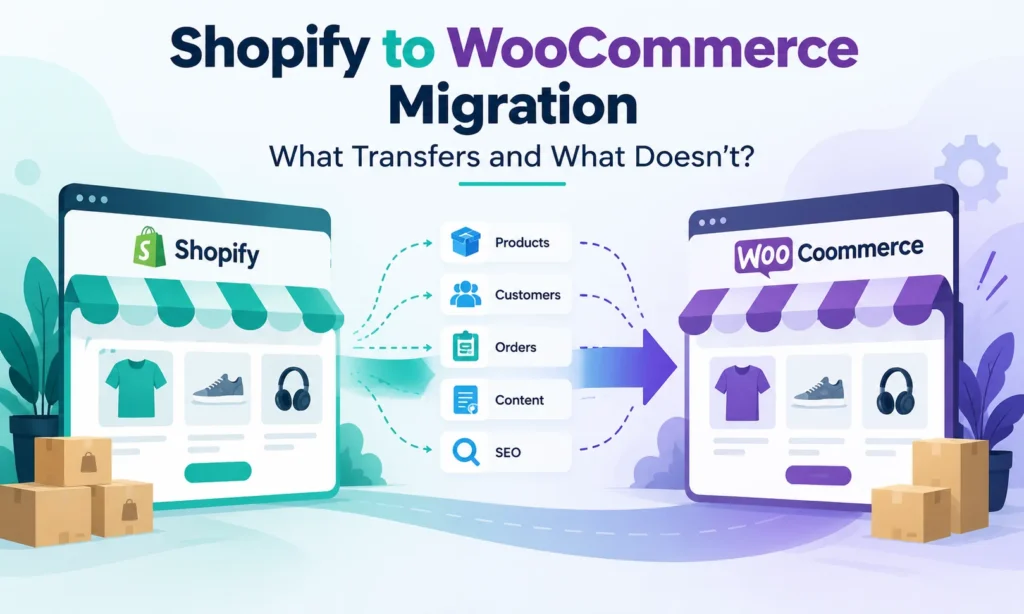

Moving from Shopify to WooCommerce is possible without rebuilding your entire product catalog. Products, variants, customers, orders, pages and blog content can be transferred using CSV imports or dedicated migration tools. However, not everything moves automatically.
Customer passwords cannot be exported, Shopify themes and apps need replacements, and subscriptions or saved payment details may require separate migration arrangements. Your product URLs may also change, creating SEO risks if redirects are missing.
This guide explains exactly what transfers from Shopify to WooCommerce, what needs rebuilding, and how to switch platforms without losing critical store data or unnecessarily disrupting sales.
Quick Answer: What Transfers from Shopify to WooCommerce?
| Store data | Can it transfer? | Important limitation |
|---|---|---|
| Products, titles and descriptions | Yes | Some fields require remapping |
| Product images | Yes | Images must remain accessible during import |
| Variants and SKUs | Yes | Check attributes, stock and parent-product mapping |
| Collections and categories | Yes | Shopify collections may need restructuring |
| Customers and addresses | Yes | Customer passwords cannot transfer |
| Order history | Yes, with suitable tools | Refunds, statuses and record relationships need verification |
| Reviews | Depends on review app and importer | Often requires separate export |
| Discount codes | Usually, with appropriate tools | Conditions and automatic discounts may need rebuilding |
| Blog posts and pages | Yes, with suitable tools | Formatting and internal links may change |
| Shopify theme and design | No direct transfer | Rebuild using WordPress themes or blocks |
| Shopify apps | No | Replace and reconfigure integrations |
| Active subscriptions | Not automatically | Billing agreements and payment tokens need special handling |
| Gift cards and store credit | Not automatically | Balances and redemption rules need separate handling |
| SEO rankings and backlinks | Not directly transferable | Preserve relevant URLs and implement 301 redirects |
Transfer success depends on the importer, available source data, and whether a WooCommerce feature or extension supports the original Shopify functionality.
WooCommerce documents migration options for products, customers, orders, pages, blogs and coupons. More complex records may require dedicated extensions and validation.
What Doesn’t Transfer Automatically?
The biggest migration risks involve data that cannot be moved through a simple product CSV.
Customer passwords and accounts
Shopify does not expose customers’ passwords for migration. Customer records can be recreated in WooCommerce, but customers generally need to set new passwords or activate their replacement accounts.
Importing a customer’s email address does not automatically restore their login credentials or guarantee that their complete purchase history appears correctly.
Shopify themes, apps and custom functionality
Shopify themes cannot simply be installed in WordPress. You need to recreate the design using a WooCommerce-compatible theme, page builder or custom development.
Shopify apps also do not transfer. This affects features such as loyalty points, subscription billing, reviews, product bundles, abandoned-cart automation and shipping integrations.
For each existing app, identify its WooCommerce equivalent and verify whether the app’s historical data can be exported.
Subscriptions and saved payment methods
Moving historical subscription records is different from maintaining active recurring billing.
A subscription may involve a customer account, payment gateway, billing token, renewal date and product relationship. Those details cannot always be transferred between providers.
WooCommerce’s subscription migration documentation notes that payment-method compatibility is a major consideration. Some merchants may need customers to update their saved payment methods or authorize billing again.
Do not cancel your existing recurring payment setup until active subscriptions and renewal behavior have been verified.
Gift cards, loyalty points and store credits
Gift card balances, loyalty points and store credits often depend on Shopify apps or specific platform features.
These balances should be exported and reconciled separately, then recreated using compatible WooCommerce systems. A successful product or order import does not establish that these customer liabilities were preserved.
How to Migrate from Shopify to WooCommerce
There are two main approaches: manual CSV migration and a dedicated migration extension.
Step 1: Audit and back up your Shopify store
Before making changes, export available products, customers, orders and other essential records. Record your live product URLs, collection URLs, blog pages, SEO titles and current integrations.
Create a migration inventory that includes product counts, variants, customer records, historical orders, active subscriptions, refunds, gift cards and third-party apps.
Also record the current order count and establish a cutoff procedure for orders received during the migration.
Step 2: Set up WordPress and WooCommerce
Prepare a staging environment with suitable hosting, HTTPS, WordPress and WooCommerce installed.
Configure your store’s currency, taxes, shipping zones, payment gateway and permalink structure before bringing over live data.
Keep the staging site out of public search results, and ensure checkout is not accepting real customer orders during testing.
Step 3: Transfer your product catalog
For a small, straightforward catalog, you can export Shopify products as CSV, convert the columns to WooCommerce’s expected format and use Products → All Products → Import in WordPress.
Shopify and WooCommerce do not use identical CSV schemas. Review the mapping for titles, descriptions, pricing, SKUs, product attributes, variations and inventory.
Product images require special attention. Shopify’s exported product CSV contains image references, not the actual image files. Keep the original images publicly accessible until WooCommerce has imported them and you have checked that the files are stored correctly on the new site.
For larger catalogs, use a migration tool with direct Shopify-to-WooCommerce import support.
Step 4: Import customers and historical orders
Shopify provides customer and order exports, but WooCommerce does not automatically understand all Shopify CSV fields.
You can use a compatible CSV import extension or a dedicated migration tool that maps customer records, order line items, addresses, taxes and statuses.
Check that:
- Customers are matched to the correct accounts.
- Historical orders reference the correct products and variants.
- Totals, discounts, shipping charges and refunds remain accurate.
- Order statuses do not accidentally trigger new fulfillment or payment actions.
- Customer account activation or password-reset instructions are prepared.
WooCommerce’s migration documentation highlights the risk of losing order-to-customer relationships when data is imported using basic CSV methods.
For a store with significant order history, a dedicated importer is generally more suitable than manually editing thousands of CSV rows.
Step 5: Transfer pages, blogs, reviews and discounts
Dedicated migration tools can import Shopify pages, articles and coupons. Review the resulting content because Shopify and WordPress use different templates and content structures.
Customer reviews may require an export from the original review app, followed by an import into your selected WooCommerce review solution.
Discount codes also need validation. A coupon may transfer while its original eligibility rules, usage limits or automatic application behavior do not.
Step 6: Replace Shopify apps and configure checkout
Install only the WooCommerce extensions necessary to reproduce your existing store’s functionality.
Prioritize payment processing, shipping, taxes, transactional emails, analytics, inventory synchronization and subscriptions.
Before launch, run test purchases across relevant payment methods, devices and shipping regions. Check order confirmation emails, refunds, tax calculations and payment status updates.
If your customers use UPI, wallets or local payment methods in India, compare provider compatibility and costs before selecting a replacement checkout setup. Our Cashfree, Razorpay, CCAvenue and PayU comparison for Shopify provides related payment-provider context, although WooCommerce compatibility must be verified separately.
How to Migrate from Shopify to WooCommerce Without Losing SEO
Your store’s pages, search visibility and backlinks require separate attention from the database import.
For example, Shopify commonly uses /products/product-name and /collections/category-name paths, while WooCommerce permalinks can use /product/product-name and /product-category/category-name.

Without redirects, visitors and search engines following old links may encounter 404 errors.
Shopify to WooCommerce URL mapping
| Old Shopify URL | Example WooCommerce URL | Required action |
|---|---|---|
/products/blue-shirt | /product/blue-shirt/ | 301 redirect |
/collections/mens-shirts | /product-category/mens-shirts/ | 301 redirect |
/blogs/news/sizing-guide | /blog/sizing-guide/ | 301 redirect |
/pages/contact | /contact/ | Redirect if changed |
| Homepage | Homepage | Preserve the existing domain where possible |
These are examples, not mandatory WooCommerce URL structures. You can configure your permalinks differently.
If you’re keeping the same domain, the old URLs must be handled by the new hosting and WordPress environment after cutover. Don’t assume redirects configured inside Shopify will continue functioning once Shopify no longer serves the domain.
Essential SEO migration checks
- Export your important existing URLs from the sitemap, crawl data and Google Search Console.
- Create a one-to-one redirect map wherever a corresponding new page exists.
- Preserve product titles, descriptive content and important metadata where appropriate.
- Update internal links to point directly to final WooCommerce URLs.
- Set self-referencing canonical tags on the intended indexable pages.
- Regenerate and submit the XML sitemap.
- Check product structured data, breadcrumbs, robots directives and important category pages.
- Monitor indexing, 404 errors, redirects and search performance after launch.
Avoid redirecting every removed page to the homepage. Google recommends directing changed URLs to relevant destinations and avoiding unrelated redirects.
Temporary ranking fluctuations can occur during a platform migration. Redirects reduce risk, but they cannot guarantee unchanged rankings.
Best Shopify to WooCommerce Migration Method
| Method | Best for | Main limitation |
|---|---|---|
| Manual CSV import | Small catalogs with simple requirements | More field mapping and manual checks |
| Dedicated migration plugin | Established stores moving several data types | Extension cost and feature-specific limitations |
| Developer-managed migration | Complex subscriptions, custom apps and large stores | Higher implementation effort |
WooCommerce lists several migration extensions, including tools capable of importing products, customers, orders, pages, blog content and coupons.
Some also support redirect mapping or temporary data synchronization between Shopify and WooCommerce. Check those features against the specific extension rather than assuming every plugin provides them.
For instance, the Shopify Data Migrator documentation describes dry-run previews, redirect mapping and one-way synchronization during cutover.
Whichever method you choose, test with a small representative dataset before importing the entire store.
How Much Does Shopify to WooCommerce Migration Cost?
There is no migration fee. WooCommerce core is free, but hosting, premium extensions, developer assistance and ongoing maintenance can create costs.
| Cost component | What affects the expense |
|---|---|
| WooCommerce software | Core plugin is free |
| Hosting | Store traffic, infrastructure and support |
| Migration extension | Product pricing and required data types |
| Theme and design | Existing theme versus custom rebuild |
| App replacements | Required WooCommerce extensions |
| Developer assistance | Store size, customization and complexity |
| Post-launch maintenance | Hosting, security, backups and plugin updates |
A small catalog can sometimes be migrated largely through manual exports and imports. A store with thousands of orders, active subscriptions, complex tax rules and third-party integrations will require more testing and potentially professional assistance.
The lower subscription expense associated with WooCommerce does not necessarily translate into a lower total operating cost. Hosting, maintenance, extensions and troubleshooting become part of the merchant’s responsibility.
Shopify to WooCommerce Migration Checklist
Before switching your live domain, confirm that these items are complete:
| Check | What to verify |
|---|---|
| Products | Product counts, images, variations, SKUs and stock |
| Customers | Account mapping, addresses and login reset process |
| Orders | Historical totals, refunds, statuses and customer links |
| Payments | Successful test transactions and refund flow |
| Subscriptions | Active renewals and payment authorization |
| Shipping and taxes | Correct rules across applicable locations |
| SEO | 301 redirects, canonical URLs, sitemap and indexing |
| Analytics | GA4 ecommerce and purchase tracking |
| Order notifications and customer communication | |
| Cutover | Final data sync, DNS changes and rollback plan |
Schedule the final migration for a lower-traffic period where practical. Import any new or changed orders and inventory records since the initial migration, then validate their counts.
Keep the old Shopify environment and backups available until the new store has processed real orders successfully and critical data has been reconciled.
Final Verdict
Shopify to WooCommerce migration is manageable when the store uses standard products, straightforward payments and common ecommerce features. Products, customers, orders and content can be transferred, but not every record or feature will move exactly as it existed.
Customer passwords, recurring billing, app-dependent functionality and SEO redirects deserve the most attention.
For a small store, CSV imports may be sufficient. For an established business with substantial order history or complex integrations, a specialized migration tool or developer-managed process is generally safer.
The goal should not be merely getting products into WooCommerce. It should be launching a functioning store with accurate data, preserved customer access, reliable payments and minimal disruption to search traffic.
Frequently Asked Questions

Ajay Kumar is an SEO and AI search specialist with more than 10 years of experience across SEO, app store optimisation and generative engine optimisation. He has led search growth for gaming, software, fintech and healthcare brands in India and internationally, and he edits every CompareCrest comparison, checking pricing and claims against vendor sources before publishing.