
If your Windows PC used to start quickly but now takes several minutes to become usable, something has probably changed. Too many apps may be loading at sign-in, the system drive may be running low on space, a recent software change could be causing a conflict, or the hardware may simply be struggling with the workload.
The good news is that you don’t need to start by reinstalling Windows or downloading a third-party “PC optimizer.” Windows already includes several tools that can help identify and fix common startup problems.
The important part is finding the bottleneck before changing settings. Start with the easy fixes below and move toward deeper troubleshooting only if the problem remains.
Quick Answer
The most effective ways to fix slow Windows startup are:
- Disable unnecessary startup apps
- Check which startup programs have the biggest impact
- Free up space on the Windows drive
- Install pending Windows and driver updates
- Remove programs you no longer use
- Check whether background apps are consuming resources
- Optimize your storage drive
- Use a clean boot to find software conflicts
- Repair corrupted Windows system files
- Consider a hardware upgrade if the PC is consistently limited
You don’t necessarily need to try all 10. If your PC suddenly became slow, start with startup apps, storage, updates and recently installed software.
First, Find Out What “Slow Startup” Actually Means
Before changing anything, pay attention to where the delay happens. If the manufacturer logo stays on screen for a long time before Windows appears, the problem may be related to hardware, firmware, boot configuration or the storage device.
If Windows reaches the sign-in screen quickly but takes a long time after you enter your password or PIN, startup applications and background processes are more likely to be responsible.
If the desktop appears but the computer remains sluggish for several minutes, check Task Manager. Consistently high CPU, memory or disk usage can point toward the underlying problem. Microsoft also lists long startup times, low storage and consistently high CPU, memory or disk usage among signs of declining PC performance.
This distinction matters because disabling startup apps won’t fix a failing SSD, and freeing up storage won’t necessarily fix a software conflict.
1. Disable Unnecessary Startup Apps
This is the first thing to check because many programs add themselves to Windows startup during installation.
Open Settings → Apps → Startup. You’ll see applications that can launch automatically when you sign in. Turn off apps you don’t need immediately after Windows starts.
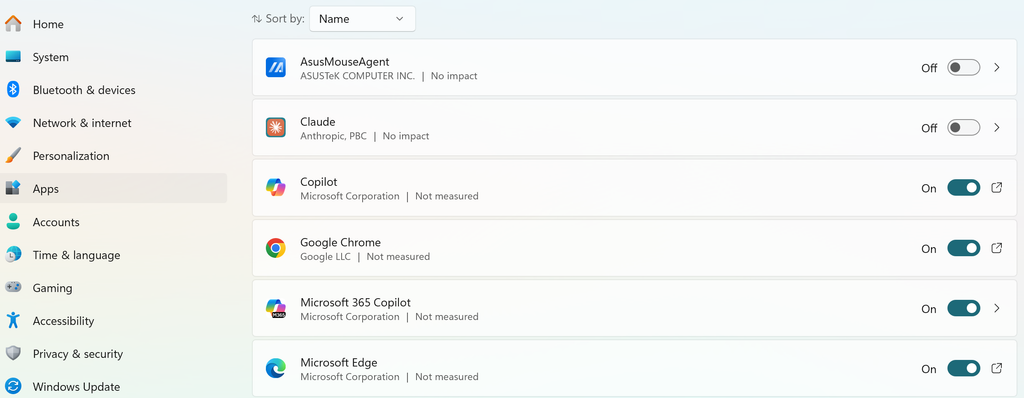
You can also open Task Manager → Startup apps. Task Manager provides more detail about the startup impact of each application, including whether Windows classifies its impact as low, medium or high.
Don’t disable everything just because it appears in the list. Programs related to hardware, security, audio drivers or other functions you rely on may need to start with Windows.
A better approach is to ask: Do I actually need this program running the moment I sign in?
Cloud storage, game launchers, messaging apps, creative software and collaboration tools are common examples of applications you may not need starting immediately.
What to disable first
Look for applications you recognize but rarely use. If an app has a High startup impact and you don’t need it immediately, it’s a good candidate to disable.
You can always turn it back on later.
2. Don’t Confuse Startup Apps With Background Apps
Disabling a startup app doesn’t necessarily stop every part of that application from running later.
Some Windows 11 apps can also run background activity when you’re not actively using them. Microsoft provides controls under Settings → System → Power & battery → Battery usage → Manage background activity for supported apps.
If a particular app is constantly syncing, checking for updates or running processes in the background, restricting its background activity can reduce unnecessary resource use.
However, this is more useful for ongoing performance and battery consumption than as a guaranteed fix for boot time. Don’t change these settings blindly.
3. Check How Much Free Space Your Windows Drive Has
A nearly full system drive can contribute to poor Windows performance and can also create problems when installing updates.
Open File Explorer → This PC and check the free space on the drive containing Windows, normally the C: drive.
Windows also provides Settings → System → Storage, where you can see what’s consuming space. Microsoft’s current guidance specifically notes that low storage can contribute to slower performance.
You can use Storage Sense to automatically remove unnecessary temporary files. Windows also has Cleanup recommendations, which can identify temporary files, large or unused files and unused applications.
Don’t randomly delete folders from the Windows directory to create space. Use Windows’ built-in storage tools or remove applications and personal files you no longer need.
4. Install Windows Updates
An outdated Windows installation can contain bugs or compatibility problems that have already been addressed in later updates.
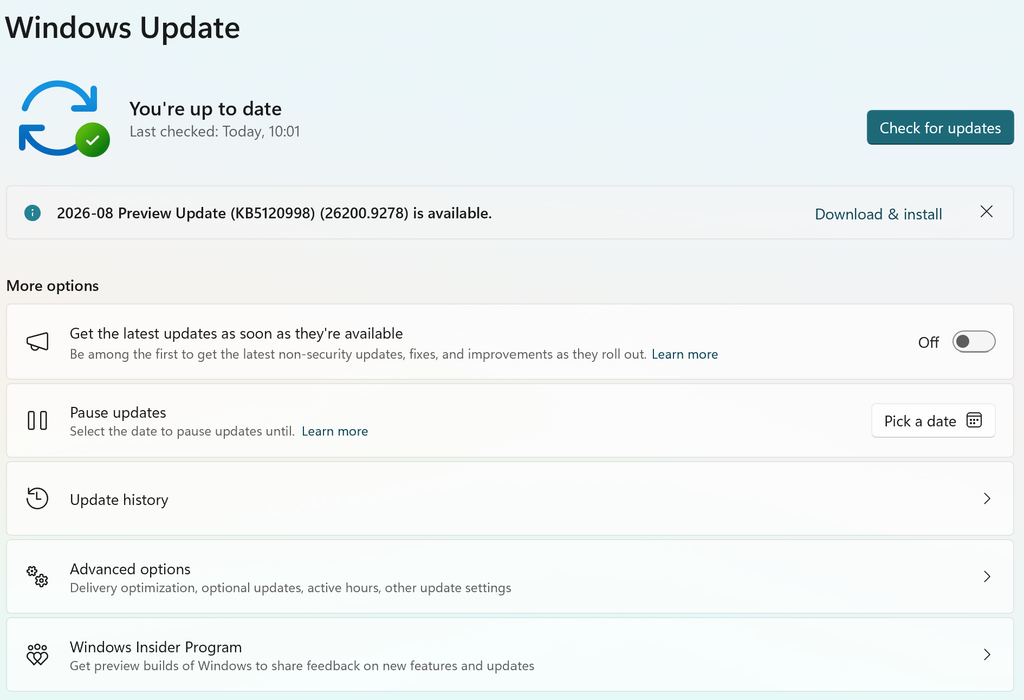
Go to: Settings → Windows Update → Check for updates
Install available updates and restart the PC if required. Microsoft recommends keeping Windows updated, and its performance guidance includes Windows and optional driver updates among the steps to try when a PC is running slowly.
If the slow startup started immediately after an update, that’s a different situation. In that case, note the timing before installing or removing anything else.
5. Update Drivers — But Don’t Download Random Driver Updaters
Drivers can affect how Windows communicates with components such as storage, graphics, networking and other hardware.
Start with Windows Update and check for optional driver updates where available.
For important hardware, you can also check the manufacturer’s official support page for your laptop or motherboard.
Avoid installing generic “driver booster” utilities simply because a website says your drivers are outdated. You don’t need third-party software to perform basic driver management.
6. Remove Software You No Longer Use
Programs that you installed months or years ago can continue adding services, scheduled tasks or startup entries even if you rarely open them.
Go to Settings → Apps → Installed apps and remove software you no longer need.
This is particularly worth checking if your PC has accumulated multiple antivirus products, system utilities, game launchers, cloud-storage clients or manufacturer utilities.
Don’t uninstall hardware drivers or components simply because their names aren’t familiar. If you’re unsure what something does, identify it first.
7. Check Whether Your Storage Drive Is the Bottleneck
The type and condition of your storage can have a major effect on how quickly Windows becomes usable.
A modern SSD generally provides a much better Windows experience than an older mechanical hard drive. If your computer still uses an HDD and feels slow not only during startup but also when opening applications and files, storage may be the bigger issue rather than Windows itself.
Windows includes Defragment and Optimize Drives. For HDDs, Windows can defragment the drive; for SSDs, Windows performs TRIM-related optimization rather than traditional defragmentation. Windows normally handles drive optimization automatically, so you don’t need to repeatedly run third-party defragmentation tools.
If your drive is showing errors, disappearing, making unusual noises or causing frequent freezes, optimization isn’t the solution. Back up important files and investigate the drive’s health.
8. Use a Clean Boot to Find the Real Culprit
If you’ve disabled obvious startup apps but Windows is still taking too long to become usable, a clean boot can help determine whether a third-party service or startup program is causing the problem.
Microsoft’s clean-boot procedure starts Windows with essential drivers and startup programs so you can isolate software conflicts.
The process uses System Configuration (msconfig) and Task Manager. Microsoft specifically warns that System Configuration is an advanced tool and should be used carefully.
The useful part isn’t simply leaving your PC in clean-boot mode. The goal is to determine whether startup improves when third-party services and startup programs are temporarily excluded. If it does, re-enable items systematically until you identify the software responsible.
This is much better than randomly disabling Windows services and hoping something improves.
9. Repair Corrupted Windows System Files
If startup became slow alongside crashes, freezes, error messages or other Windows problems, damaged system files could be involved.
Microsoft provides two built-in repair tools: DISM and System File Checker (SFC).
Microsoft recommends running DISM before SFC. From an elevated Command Prompt, the process begins with:
DISM.exe /Online /Cleanup-image /RestorehealthAfter that completes, run:
sfc /scannowMicrosoft says these tools can repair missing or corrupted Windows components and protected system files.
This is not a magic “speed up Windows” command. If your startup is slow because 25 unnecessary programs are loading or because you’re using an old HDD, system-file repair won’t suddenly make the PC fast.
Use it when there are signs that Windows itself may be damaged.
10. Know When Software Fixes Aren’t Enough
Sometimes the reason Windows starts slowly is simply that the hardware is old or heavily constrained.
This is particularly common with older PCs that have:
- A mechanical hard drive instead of an SSD
- Very limited RAM
- An aging processor
- A nearly full or failing storage drive
- Hardware that struggles with newer versions of Windows
Microsoft notes that older PCs may not see significant improvements from software-based performance fixes when the underlying hardware no longer meets modern needs.
If your PC has an HDD, moving Windows to an SSD can be a much more meaningful upgrade than installing another optimization utility. If memory usage is consistently high, adding RAM may also help, provided the system supports an upgrade.
What Not to Do When Windows Starts Slowly
A slow startup can make you want to try every optimization trick you find online. Resist that temptation.
Don’t disable random Windows services. Some are required for networking, security, updates or other system functions.
Don’t edit the Windows Registry unless you have a specific reason and know what you’re changing. Microsoft warns that incorrect Registry changes can have unintended consequences.
Don’t install multiple “PC cleaner” or “driver booster” programs. They can add more background software to a computer you’re already trying to make faster.
Don’t repeatedly defragment an SSD. Windows already handles SSD optimization appropriately.
And don’t jump straight to a Windows reset. A reset can solve some serious problems, but it’s a much bigger step than disabling five unnecessary startup programs.
The Fastest Troubleshooting Order
If you want the shortest practical route, use this order:
1. Check Task Manager → Startup apps
Disable unnecessary high-impact programs.
2. Check C: drive storage
Free up space if the system drive is close to full.
3. Install Windows and relevant driver updates
Restart and check whether startup improves.
4. Look at Task Manager after signing in
Check whether CPU, memory or disk usage stays unusually high.
5. Remove recently installed or unnecessary software
Especially anything that coincided with the slowdown.
6. Try a clean boot
Use it if you suspect a third-party service or application.
7. Run DISM and SFC
Use these when there are signs of Windows system-file problems.
8. Consider hardware
If the PC is old, an SSD or RAM upgrade may provide a bigger improvement than software tweaks.
Why is my Windows computer taking so long to start?
A slow Windows startup can come from too many startup apps, low free storage, outdated drivers, background processes, Windows system problems, or aging hardware. First check Task Manager → Startup apps and see whether high-impact programs are launching when you sign in. If the desktop appears quickly but remains unusable for several minutes, check CPU, memory and disk usage after login as well.
How do I fix slow startup in Windows 11 without reinstalling Windows?
It can, particularly when several resource-heavy programs launch automatically. Windows’ Task Manager shows the startup impact of supported applications, making it easier to identify programs that may be contributing to the delay. Disable only applications you recognize and don’t need immediately after signing in rather than turning off everything in the list.
Can low disk space cause slow Windows startup?
Low free space can contribute to poor Windows performance and can make routine system operations more difficult. Check Settings → System → Storage and look at how much space remains on the Windows drive. Storage Sense and Windows’ cleanup recommendations can help remove temporary and unnecessary files without manually deleting system folders.
Should I use a PC cleaner or registry cleaner to fix slow Windows startup?
Usually not. Windows already provides tools for managing startup applications, cleaning storage, installing updates and diagnosing system problems. Random registry changes or aggressive cleanup utilities can create new problems without addressing the actual reason your computer is slow.
How do I fix Windows startup when the desktop appears but everything freezes?
Start by checking Task Manager after the desktop loads. If disk usage, memory or CPU remains extremely high, identify which application or process is responsible before changing system settings. If normal troubleshooting doesn’t identify the cause, a Windows clean boot can help determine whether a third-party service or startup program is responsible.
Does adding RAM make Windows start faster?
Not necessarily. More RAM can help if your computer regularly runs out of available memory, but it isn’t automatically a solution for slow boot times. If Windows is installed on an HDD, moving to an SSD may provide a more noticeable improvement. Check Task Manager’s memory usage before deciding that RAM is the problem.
How do I fix slow startup without deleting my files?
You can try several non-destructive fixes first: disable unnecessary startup apps, free space using Windows Storage tools, install updates, remove unused applications, investigate background resource usage and perform a clean boot. If Windows system files are suspected to be corrupted, DISM and System File Checker can also be used before considering a reset or reinstall.
When should I reset or reinstall Windows because of slow startup?
A reset or clean installation makes more sense when Windows has persistent problems that cannot be isolated or repaired through normal troubleshooting. It shouldn’t be the first response to a slow startup because many cases are caused by startup applications, storage constraints, software conflicts or hardware limitations. Back up important files before taking any major recovery step.

Ajay Kumar is an SEO and AI search specialist with more than 10 years of experience across SEO, app store optimisation and generative engine optimisation. He has led search growth for gaming, software, fintech and healthcare brands in India and internationally, and he edits every CompareCrest comparison, checking pricing and claims against vendor sources before publishing.