Want to see all the Google reviews you’ve written? Open Google Maps, go to Your contributions → Reviews on desktop, or Contribute → View your profile → See all reviews on Android or iPhone. You’ll find reviews and ratings you’ve posted for restaurants, shops, hotels and other places.
From there, you can change a star rating, update a review, add photos, share it or delete it. If an older review is missing, the problem may be your Google account, a removed review or Google’s content moderation.
This guide shows where to find Google reviews by you, with separate instructions for desktop, Android and iPhone, plus troubleshooting steps if your reviews aren’t appearing.
How to See Google Reviews by Me: Quick Steps
| Device | Where to find your reviews |
|---|---|
| Desktop or laptop | Google Maps → Menu → Your contributions → Reviews |
| Android | Google Maps → Contribute → View your profile → See all reviews |
| iPhone or iPad | Google Maps → Contribute → View your profile → See all reviews |
Make sure you’re signed in to the Google account you originally used to post the reviews. Reviews are associated with that account, not simply the device you’re using.
How to Find Google Reviews Done by Me on Desktop
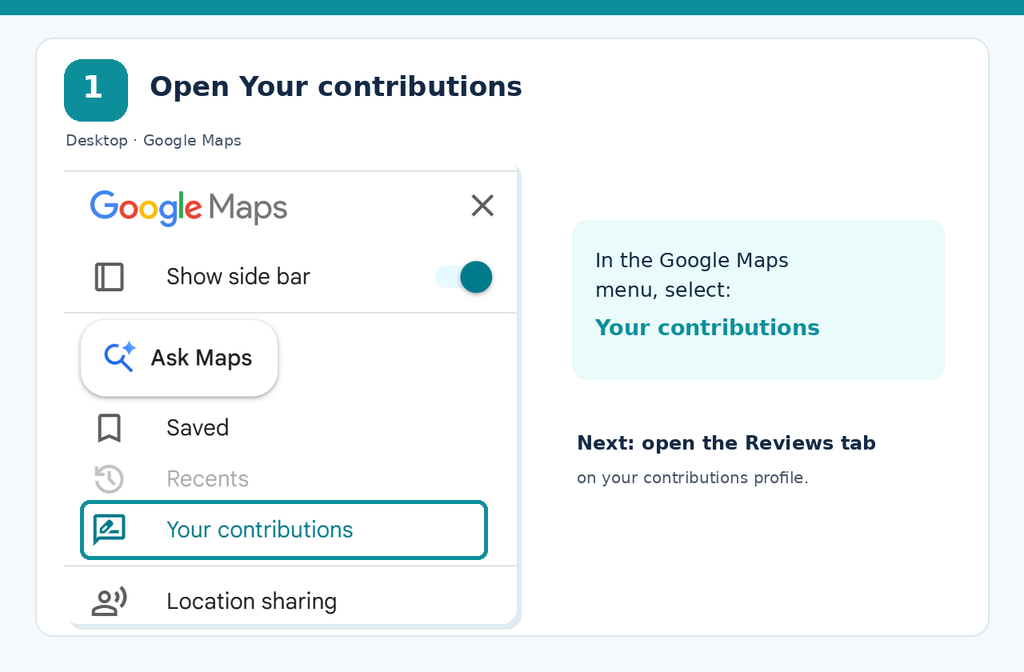
You can view the reviews you’ve written through Google Maps in Chrome, Edge, Firefox or another supported browser.
- Open Google Maps and sign in.
- Click the three-line Menu in the upper-left corner.
- Select Your contributions.
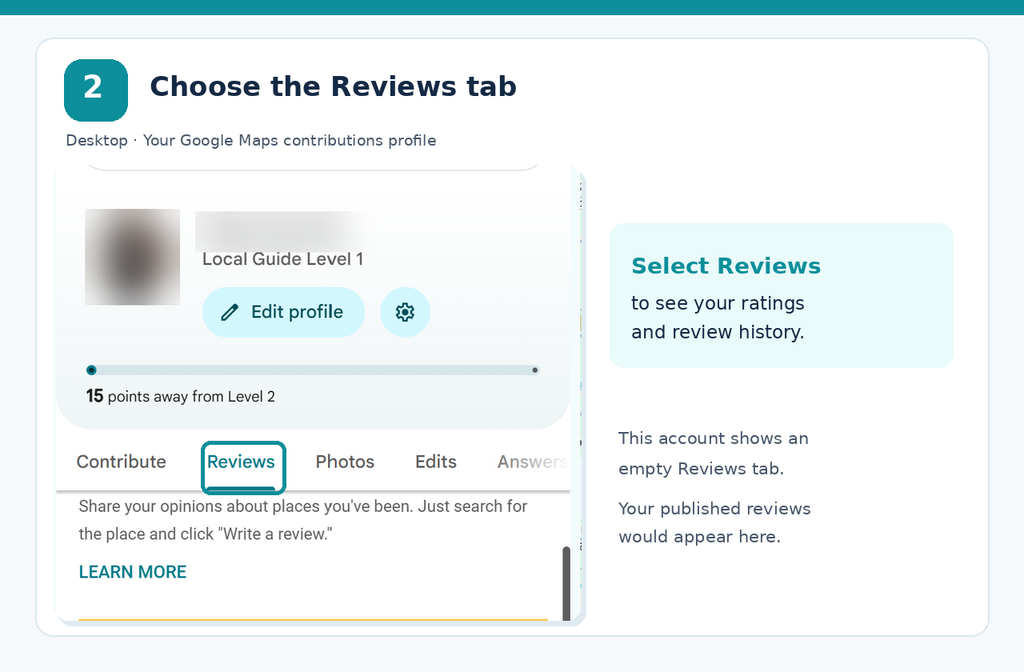
- Open the Reviews tab.
- Browse the reviews and ratings you’ve previously submitted.
Your contributions section is also where Google organizes other contributions, such as photos and place edits. For this task, use the Reviews tab rather than the general Contribute option, which may suggest new places to review.
If your reviews are missing, click your Google account avatar and confirm you’re using the correct account.
How to Find Your Google Reviews on Android
On Android phones and tablets, the Google Maps mobile app provides access to your review history.
- Open the Google Maps app.
- Tap Contribute in the bottom navigation.
- Tap View your profile.
- Scroll down to your review section.
- Tap See all reviews.
You can now view reviews and ratings associated with your account, including places you reviewed previously.
If you don’t see the expected reviews, check the profile picture in Google Maps to confirm you’re signed in to the right account.
How to See Reviews You’ve Written on iPhone or iPad
Google Maps uses nearly the same review-management process on iOS.
- Open the Google Maps app on your iPhone or iPad.
- Sign in to the account used to post your reviews.
- Tap Contribute.
- Select View your profile.
- Scroll down and tap See all reviews.
Your reviews will appear in your Google Maps contributions history. You can open individual entries to view or manage them.
If you’re accessing Google Maps through a mobile browser and cannot find these controls, use the Google Maps app for the documented mobile workflow.
How to Edit a Google Review You’ve Already Posted
You can change the text, star rating and associated photos of a review after publishing it.
On desktop:
- Open Google Maps and select Menu → Your contributions → Reviews.
- Find the review you want to update.
- Click the three-dot More menu beside it.
- Choose Edit review.
- Make your changes and save or post the updated review.
On Android or iPhone:
- Open Google Maps and go to Contribute → View your profile.
- Tap See all reviews.
- Find the review and tap its three-dot menu.
- Select Edit review.
- Update the review and save your changes.
For example, if you originally gave a restaurant three stars but your experience improved after another visit, you can update the rating and explain what changed.
Google displays the date of the latest edit as the review’s posting date, so an edited review may appear newer than its original publication.
Also read: n8n Community Edition Limits: Free Features and Paid Restrictions
How to Delete a Google Review
If you no longer want a review associated with your account, you can delete it.
On desktop, open Your contributions → Reviews, find the review, click the three-dot menu and select Delete review.
On Android or iPhone, go to Contribute → View your profile → See all reviews, tap the three-dot menu next to the review and choose Delete review.
Confirm the deletion when Google asks.
Deleting a review removes that contribution rather than simply hiding it from other people. If you want to correct an inaccurate rating or outdated information, editing may be preferable to deleting the entire review.
You cannot directly delete reviews written by someone else. Those must be reported through Google’s review-reporting process if they violate its policies.
How to Share a Google Review You’ve Written
You can share a review you’ve posted with someone else, such as a friend looking for a restaurant recommendation.
- Open your Google Maps reviews using the desktop or mobile steps above.
- Find the review you want to share.
- Select the available Share option.
- Copy the link or choose a supported sharing app.
- Send the link to the recipient.
Google documents a Share action for individual contributions. Sharing options may appear differently depending on your device and the current interface.
You can also share the Google Maps listing for a business, but that may open the business page rather than take the recipient directly to your specific review.
Why Are My Google Reviews Missing or Not Showing?
There are two different problems: a review may be missing from your own contributions history, or it may appear in your account but not be visible to other people.
The possible causes and next steps are different.
| Problem | What to check |
|---|---|
| No reviews appear in your account | Check whether you’re signed in to the correct Google account |
| Only some older reviews are missing | Check for content removal or changes to the place listing |
| Review appears to you but not publicly | Google may be reviewing or restricting its publication |
| Review disappeared after publication | Check for content-policy enforcement or account restrictions |
| Edit or delete option is missing | Verify account ownership and try the documented app or desktop path |
| Recently posted review isn’t visible yet | Publication may be delayed by Google’s moderation process |
Google reviews are subject to automated and manual moderation. Content may be delayed, rejected or removed for policy violations, including spam, inappropriate material and prohibited review activity.
What if Google removed your review by mistake?
Google provides an appeal process for certain Maps content removals.
If your Maps profile indicates that a review was removed or rejected for a policy violation, check whether the contribution has an eligible appeal option. Google says appeal availability depends on the account and type of enforcement.
Do not delete or edit a review after submitting an appeal, because Google states that doing so can cancel the appeal.
You can review the process in Google’s Maps Content Appeals Guide.
An appeal does not guarantee reinstatement. If approved, Google may restore the content; if denied, the review remains removed.
Are Google Reviews Public or Private?
Google Maps reviews are public contributions. You cannot post an anonymous review through the standard Google Maps review system.
People viewing a published review may see your Google profile name, associated contribution details and other publicly available profile information.
Google also lets users restrict aspects of their Maps profile visibility, but this should not be confused with making an individual published review private.
If you no longer want a particular review publicly associated with your account, your practical options are to edit or delete it.
Can You Download All Your Google Reviews?
Google Takeout provides an option to export supported Google account data.
If you want a backup of your contributions, visit Google Takeout, sign in and look for the relevant Maps data options, such as Maps (your places).
Select the available review data, create an export and download the archive when Google makes it ready.
The exact data categories and export formats can change. Check the downloaded files rather than assuming every historical or removed review will be included.
This is useful for keeping personal records, but exporting data does not automatically delete it from Google Maps.
Final Verdict
The easiest way to find Google reviews you’ve written is through your Google Maps contributions. Desktop users can open Your contributions → Reviews, while Android and iPhone users can use Contribute → View your profile → See all reviews.
Once you locate a review, you can edit its rating, delete it or share it. If a review is missing, first check the Google account you used, then determine whether the review was removed or restricted.
For legitimate reviews removed by mistake, Google’s appeals process may offer a way to request reinstatement.
How We Tested These Steps
We tested the Google Maps desktop navigation using a signed-in account and captured original screenshots to verify how to access the Reviews section. For Android, iPhone, editing, deleting and troubleshooting, we cross-checked the steps against Google’s official documentation. Interface options may vary with app updates.