
If you’re buying a laptop or PC for video editing, RAM is one of the first specifications you’ll probably look at. The problem is that more RAM doesn’t automatically mean faster video editing. A computer with 64GB RAM and a weak CPU or GPU can still struggle, while a well-balanced 16GB or 32GB system may handle lighter projects comfortably.
So how much RAM do you actually need?
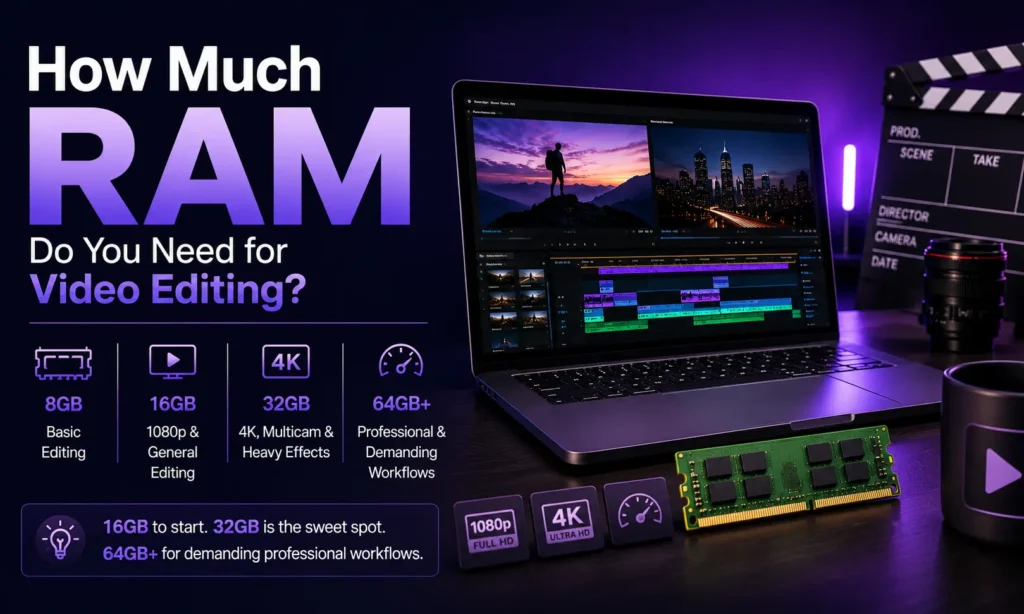
For most people, 16GB is the practical starting point, 32GB is the sweet spot for serious editing, and 64GB makes sense for demanding professional workflows. If you’re editing 4K regularly, working with RAW footage, using After Effects alongside your editor, or handling large projects, 32GB or more becomes much easier to justify.
Here’s how the numbers break down.
Quick Answer
| RAM | Best suited for | Our take |
|---|---|---|
| 8GB | Basic 1080p editing, simple projects | Minimum worth considering |
| 16GB | 1080p, light 4K, YouTube and general editing | Good starting point |
| 32GB | Regular 4K, multicam, heavier effects | Best choice for most serious editors |
| 64GB | Professional 4K, RAW, After Effects, large projects | Best for demanding workflows |
| 128GB+ | Heavy VFX, complex professional projects | Only for specific workloads |
Adobe currently lists 8GB as the minimum for Premiere Pro, but recommends 16GB for HD media and 32GB or more for 4K and higher resolutions.
Independent testing from Puget Systems points in a similar direction, although its recommendations are more demanding: its 2026 testing found that 16GB can become a constraint in professional creative workloads, while 32GB is a reasonable choice for lighter work and 64GB is a better target for many professional workloads.
So, How Much RAM Do You Really Need?
8GB RAM: Only for Basic Editing
8GB is still found in budget laptops, but it’s difficult to recommend as a new video-editing machine. Adobe lists 8GB as the minimum RAM requirement for the current Premiere Pro on Windows and macOS. That means the software can meet its basic memory requirement, not that 8GB is the ideal configuration for editing. With 8GB, you’re better off sticking to:
- Short 1080p projects
- Basic cuts and transitions
- Limited effects
- One application at a time
- Smaller projects
- Lightweight codecs and footage
The bigger problem is that your operating system and other applications also need memory. If you have a browser with several tabs, music software, Photoshop or another application open alongside your editor, 8GB can disappear quickly.
Verdict: Buy 8GB only if your editing needs are basic and the computer can be upgraded later.
16GB RAM: The Sensible Starting Point
For many people, 16GB is the minimum I’d recommend when buying a computer specifically for video editing. It’s enough for:
- 1080p editing
- YouTube videos
- Short-form content
- Basic color correction
- Light effects
- Occasional 4K editing
- General-purpose editing without a large number of applications running simultaneously
Adobe recommends 16GB for HD media in Premiere Pro. Its current requirements also recommend 16GB unified memory for supported Apple silicon systems.
There’s an important distinction here, though.
16GB doesn’t mean you should expect every 4K workflow to be comfortable. It simply gives you considerably more breathing room than 8GB. If you’re buying a laptop for casual editing, 16GB can be a reasonable compromise between price and capability.
Verdict: Best starting point for students, creators and casual editors.
32GB RAM: The Sweet Spot for Serious Editing
If video editing is an important part of your work, 32GB is the safer choice. Adobe recommends 32GB or more for 4K and higher-resolution media in Premiere Pro.
That’s particularly relevant if you’re working with:
- 4K footage
- Longer timelines
- Multiple video tracks
- Multicam projects
- RAW footage
- More demanding effects
- Larger projects
- Other creative applications alongside your editor
Puget Systems’ 2026 testing also found that memory capacity can become a meaningful limitation in professional creative workflows. For Premiere Pro specifically, its testing found relatively small differences between 16GB and higher capacities in some scenarios, but noted that real-world projects can quickly use more memory depending on footage and project complexity.
That’s a useful distinction: RAM requirements aren’t determined by resolution alone. Two people can both edit 4K video while having very different memory requirements.
Verdict: The best all-round choice for serious video editing.
64GB RAM: For Demanding Workflows
64GB is where the recommendation starts becoming more workload-specific. You probably don’t need 64GB just because you’re editing 4K video.
It becomes more useful when you’re doing things such as:
- Professional 4K editing
- RAW workflows
- Long and complex timelines
- Heavy motion graphics
- Video editing alongside After Effects
- Large multicam projects
- High-resolution projects
- Multiple creative applications simultaneously
Puget Systems’ June 2026 testing found that professional content creators and users working on complex projects should consider 64GB, describing it as a practical sweet spot in its broader content-creation testing. For Premiere specifically, its testing also found that footage type matters. RAW workflows showed a larger performance difference at lower memory capacities than some other types of footage.
Verdict: Worth paying for when your projects actually demand it.
128GB or More: Who Actually Needs It?
Most video editors don’t. Very high RAM capacities become relevant when video editing is combined with other memory-heavy workloads, such as:
- Advanced VFX
- Large After Effects compositions
- High-resolution professional projects
- Virtual production
- Large-scale multicam work
- Multiple demanding applications running together
For a typical YouTube creator, freelancer or small production setup, spending more on 128GB instead of 32GB or 64GB usually isn’t the first upgrade I’d make. You may get more value from a faster CPU, better GPU or faster storage depending on what is limiting your workflow.
Verdict: Buy this much RAM because your workload requires it, not because a bigger number looks better on a specification sheet.
RAM Requirements by Video Editing Workload
| Editing workload | Recommended RAM |
|---|---|
| Basic 1080p editing | 8–16GB |
| YouTube / social media | 16GB |
| Regular 1080p editing | 16GB |
| Occasional 4K | 16–32GB |
| Regular 4K editing | 32GB |
| Multicam 4K | 32–64GB |
| RAW video | 32–64GB+ |
| 4K + After Effects | 64GB |
| Heavy VFX / professional workflows | 64–128GB+ |
These are practical buying guidelines, not universal software requirements. The actual memory requirement depends on the editor, footage, effects, timeline length and other applications running on the system.
Does 4K Video Really Need 32GB RAM?
Not always. This is one of the most common misconceptions about video-editing hardware. A short 4K project with a few tracks and basic edits can work on 16GB. A large 4K project with multiple cameras, RAW footage, effects and other applications can make much better use of 32GB or more.
Adobe’s own distinction is useful here: it recommends 16GB for HD and 32GB or more for 4K and higher in Premiere Pro. So if you’re buying a new editing machine and expect to work with 4K regularly, 32GB is the safer purchase.
Does RAM Affect Video Editing Speed?
Yes, but RAM is only one part of the equation. If you don’t have enough memory, your system can become constrained as applications compete for available RAM. Increasing memory can remove that bottleneck.
But once you have enough RAM for your workload, adding more doesn’t necessarily make exports dramatically faster.
Puget Systems’ 2026 Premiere testing is a useful example. It found only a relatively small overall difference between 16GB, 32GB and 64GB in some Premiere benchmark scenarios, while also noting that real-world projects can vary substantially and may use more memory depending on footage and project complexity.
That’s why buying 64GB instead of 32GB isn’t automatically a performance upgrade.
The right amount is the amount that prevents RAM from becoming the bottleneck.
RAM vs CPU vs GPU: Which Matters More?
This depends on what you’re doing.
RAM
RAM determines how much data and how many applications your system can comfortably keep active. It’s particularly important for larger projects, multitasking and memory-heavy creative applications.
CPU
The CPU still plays a major role in decoding, processing and other editing tasks. Adobe’s current Premiere guidance recommends CPUs with at least eight cores for reliable performance and highlights Intel Quick Sync as useful for H.264 and HEVC decoding and playback.
GPU
The GPU matters for GPU-accelerated effects, image processing, scaling, color conversion and other tasks. Adobe currently recommends at least 4GB of GPU memory for 1080p workflows and 6GB for 4K when using its GPU-accelerated Mercury Playback Engine. So a computer with 64GB RAM but a weak processor and unsuitable GPU isn’t necessarily a better editing machine than one with 32GB and a well-balanced configuration.
What About 4GB RAM?
For modern video editing, 4GB is too restrictive to recommend for a new editing PC. Some lightweight editors may run on systems with 4GB, and you can still find software that lists low minimum requirements. But the operating system, editor and other applications all need memory.
If you’re working with a 4GB computer you already own, lightweight software, proxy media and lower-resolution projects can help. But if you’re buying a new system, spending money on 4GB RAM doesn’t make much sense for video editing.
If you’re interested in this specific use case, see our comparison of Best Video Editing Software for 4GB RAM.
Should You Buy 16GB or 32GB for Video Editing?
For most buyers, I’d make the decision this way:
Choose 16GB if:
- You’re on a budget
- You mainly edit 1080p
- You make YouTube or social content
- Projects are relatively short
- You don’t use several demanding applications together
- You can upgrade the RAM later
Choose 32GB if:
- You’re buying specifically for video editing
- You regularly work with 4K
- You edit longer projects
- You use multiple tracks
- You use heavier effects
- You want more headroom for future projects
Choose 64GB if:
- Video editing is part of your professional work
- You use RAW footage
- You work with After Effects
- You create complex 4K projects
- You regularly multitask across demanding creative applications
Does After Effects Change How Much RAM You Need?
Yes. After Effects can make a 16GB system feel much more constrained because RAM is used heavily for preview caching. Puget Systems’ 2026 testing found that After Effects showed a significant performance difference when moving from 16GB to higher memory capacities in certain workloads. It concluded that 32GB is a reasonable starting point for motion graphics and animation on tighter budgets, while 64GB becomes more appropriate as compositions become larger, longer or more demanding.
So if your workflow is:
Premiere Pro → After Effects → Premiere Pro
I’d lean toward 32GB at minimum, with 64GB making more sense for heavier projects.
What About Apple Silicon Macs?
Apple’s unified memory changes the way you should think about RAM slightly. Instead of separate system RAM and dedicated GPU memory in the traditional setup, Apple silicon Macs use unified memory shared across the system and graphics workloads.
Adobe currently recommends 16GB of unified memory for Apple silicon systems in its Premiere guidance. That doesn’t mean a 16GB Mac is equivalent to every 16GB Windows editing PC. The processor, GPU architecture, software optimization and memory architecture are different.
When buying a Mac for editing, focus on the whole configuration, not RAM alone.
What Other Software Do You Use?
This is easy to overlook. If you’re editing video while also running:
- Photoshop
- After Effects
- Lightroom
- Audition
- A browser with many tabs
- Motion graphics tools
- AI applications
your memory requirement increases. A 16GB machine that works well with one application may feel much more restricted when several demanding programs are open. If your workflow involves multiple Adobe applications, 32GB becomes much easier to justify.
What About RAM Speed?
Capacity usually matters more than chasing small differences in RAM speed for video editing.
If you’re choosing between:
32GB of appropriately supported RAM
and
16GB of faster RAM
I’d generally prioritize having enough capacity for the workload.
Puget Systems’ earlier testing found that RAM speed itself had relatively little impact on its After Effects performance results, while RAM capacity can have a much larger effect when there isn’t enough memory for the workload.
The exact balance depends on the platform, but capacity should come first.
How Much RAM Should You Buy?
Here’s the simplest answer:
For casual video editing: 16GB.
For serious 4K editing: 32GB.
For professional, complex or RAM-heavy workflows: 64GB.
For specialized VFX and very large projects: 128GB or more.
If you’re building a new PC today, 32GB is the safest middle ground for someone who knows video editing will be an important part of their workload.
If you’re primarily editing 1080p videos and trying to keep costs down, 16GB is still perfectly reasonable. And if you’re already working on a 16GB machine without running into memory limits, don’t upgrade to 64GB simply because you can. Look at what is actually slowing down your workflow first.
Our Recommendation
| User | RAM we’d recommend |
|---|---|
| Casual editor | 16GB |
| Student learning video editing | 16GB |
| YouTube creator | 16–32GB |
| Freelance video editor | 32GB |
| Regular 4K editor | 32GB |
| Professional editor | 32–64GB |
| Video + After Effects | 64GB |
| Heavy VFX / large projects | 64–128GB+ |
The Bottom Line
You don’t need 64GB of RAM just because you’re editing video. For most people, 16GB is enough to get started and 32GB is the better long-term choice. If your work involves 4K, RAW footage, After Effects or large professional projects, 64GB becomes much easier to justify. The important thing is to avoid treating RAM as the only performance specification. A balanced editing PC needs enough RAM, CPU, GPU and fast storage for the workload you’re actually doing. Adobe’s current requirements and independent testing both point toward this broader view: RAM matters, but the right amount depends heavily on footage, project complexity and the rest of the system.
If you’re buying a new computer mainly for video editing and can afford it, 32GB is the configuration we’d choose for most serious users.
Is 16GB RAM enough for 4K video editing?
Yes, for lighter 4K projects. But 32GB is a better choice if 4K editing is something you do regularly, particularly with longer timelines, multiple tracks or heavier effects. Adobe recommends 32GB or more for 4K and higher-resolution media in Premiere Pro.
Is 32GB RAM overkill for video editing?
Not if you’re regularly editing 4K video. For basic 1080p work, it may be more than you need. For serious editing, 32GB is a sensible middle ground rather than an excessive specification.
Can I edit 1080p video with 8GB RAM?
Yes. 8GB can be enough for basic 1080p editing, and Adobe lists it as the minimum RAM requirement for Premiere Pro. However, 16GB provides considerably more room for multitasking and larger projects.
Does 64GB RAM make Premiere Pro faster than 32GB?
Not necessarily. If 32GB is already enough for your project, moving to 64GB won’t automatically double performance. More RAM becomes useful when your workflow actually needs the additional capacity.
How much RAM do I need for Premiere Pro?
Adobe currently lists 8GB as the minimum, recommends 16GB for HD media and 32GB or more for 4K and higher resolutions. For a new editing PC, 16GB is a reasonable starting point and 32GB is the safer choice for regular 4K work.
Is RAM or GPU more important for video editing?
Neither is universally more important. RAM helps prevent memory constraints, while the GPU accelerates supported effects and processing. Adobe recommends at least 4GB of GPU memory for 1080p workflows and 6GB for 4K in Premiere’s GPU-accelerated workflow.
Can I upgrade from 16GB to 32GB later?
If your computer supports upgradeable RAM, yes. Check whether the laptop or desktop has accessible memory slots, whether the RAM is soldered, and the maximum supported capacity before buying.
Does more RAM improve video editing on a low-end PC?
Only up to a point. If the computer is running out of memory, adding RAM can remove a bottleneck. But if the CPU or GPU is already the limiting component, adding more RAM won’t solve that problem.
How much RAM do I need for video editing on a laptop?
For a new laptop, 16GB is the practical minimum I’d target and 32GB is preferable if video editing is a major use. Pay attention to whether the laptop allows future RAM upgrades, since many modern laptops use soldered memory.

Ajay Kumar is an SEO and AI search specialist with more than 10 years of experience across SEO, app store optimisation and generative engine optimisation. He has led search growth for gaming, software, fintech and healthcare brands in India and internationally, and he edits every CompareCrest comparison, checking pricing and claims against vendor sources before publishing.